MageMe EU Withdrawal | How It Works
This page walks through the end-to-end workflow the module implements — what the customer sees, what the merchant sees, and what happens between them. Read this before tuning settings: it fixes the vocabulary used throughout the rest of the guide.
What the module does
A logged-in customer (or a guest with order number + email) navigates to /withdraw-contract/, selects which items from an eligible order they want to withdraw, confirms in a two-step ceremony required by Article 11a(3), and receives a durable-medium email receipt with a content-hash fingerprint. The admin sees the request in Sales → Withdrawals, approves or denies it, and the customer is notified. Every state change is recorded in an append-only audit log.
The customer enters the flow from the footer link, the Withdraw from contract link in My Account, or from a CTA in an order or shipment email. Everything below happens under /withdraw-contract/ on your storefront (you can change the URL prefix in admin if needed).
Customer journey
A progress bar at the top of every screen shows the four steps and where the customer is. Steps they have already been through are clickable, so they can jump straight back to change something instead of using the Back link at the bottom of the screen. Steps still ahead cannot be clicked, and once the request has been sent the whole bar becomes read-only.
Step 1: Landing page
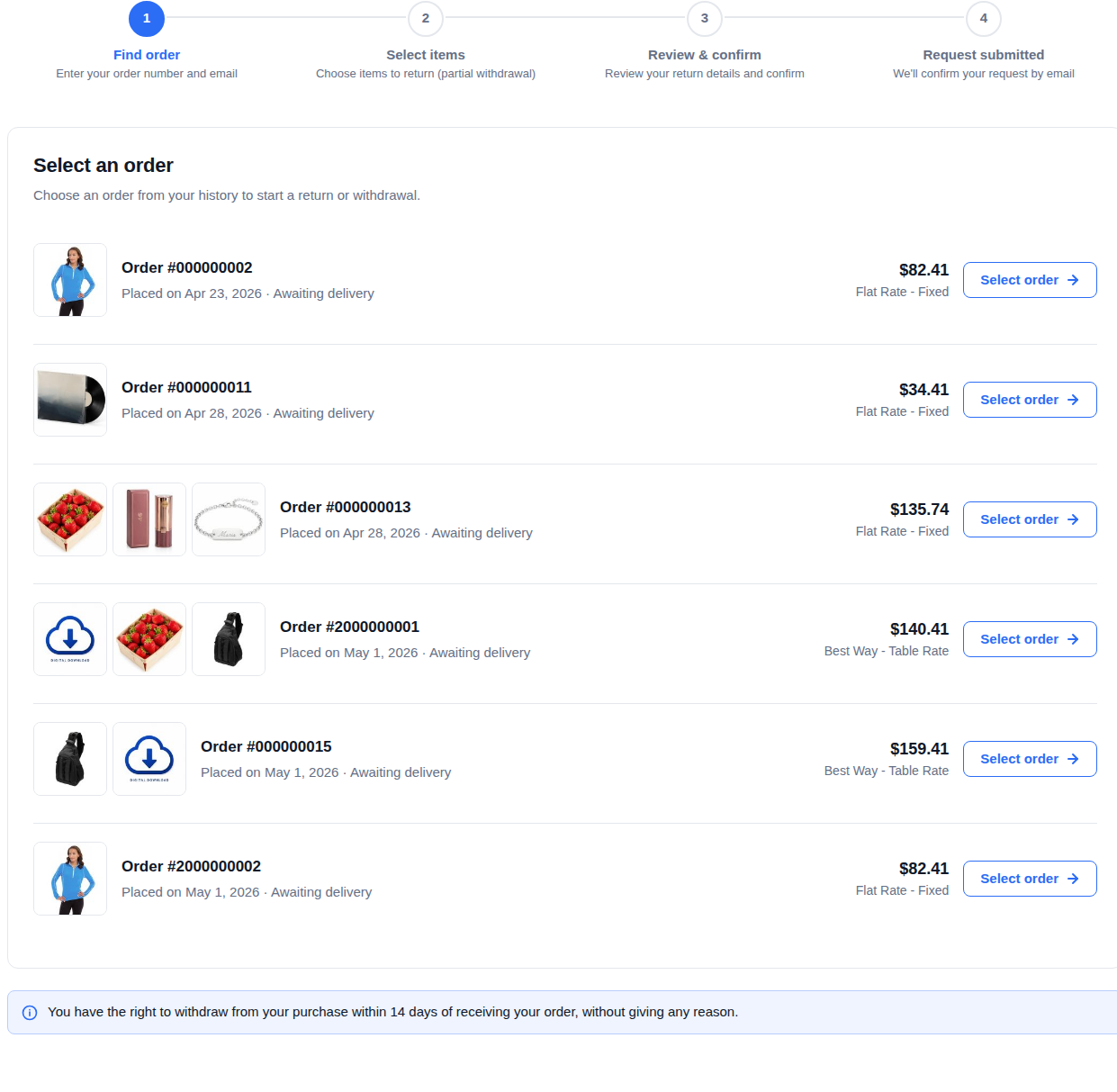
A logged-in customer sees their eligible orders with deadlines: You can return this order until May 11, 2027 (Art. 11a Directive 2011/83/EU). Ineligible items show the reason inline — Already returned, Outside the 14-day period, or Excluded under Art. 16(c) (custom-made).
A guest sees a lookup form: order number + email. If the order exists and the email matches, the same orders list renders.
Step 2: Item selection
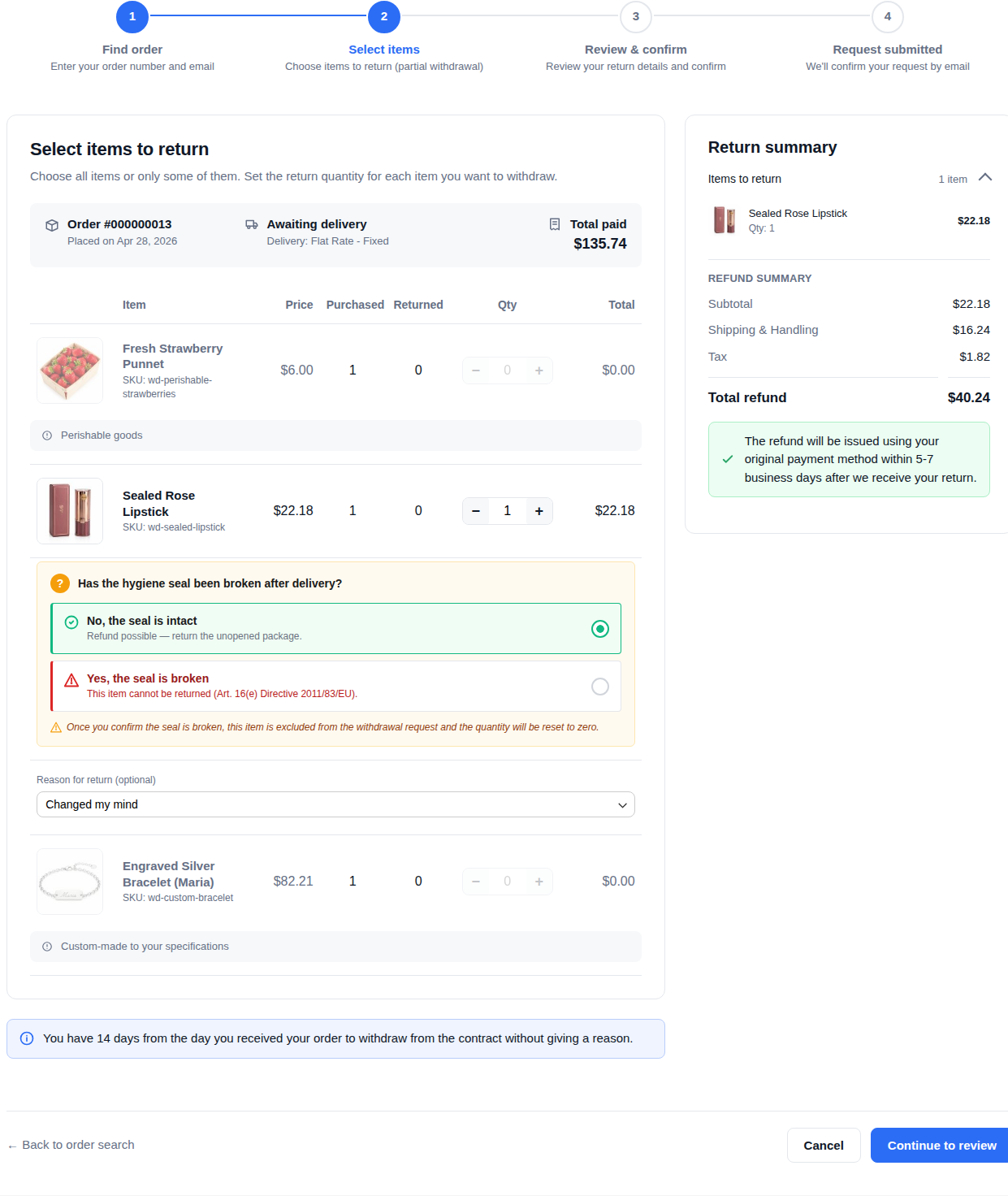
For each eligible item the customer chooses a quantity (full or partial) and a reason from the merchant-configured dropdown. The default reasons are Changed my mind, Wrong size or fit, Defective or damaged, and Not as described; merchants can add or remove reasons in Stores → Configuration → MageMe Extensions → EU Withdrawal → Frontend → Return Reasons. If Enable "Other" is on, customers get a free-text field (max 500 characters).
A live-updating sidebar shows the refund estimate — item subtotal, plus delivery when every eligible item is fully returned.
Delivery is refunded as it was charged. If a discount code reduced the delivery cost, the customer gets the reduced amount back, not the carrier's original quote. A partial withdrawal refunds no delivery at all, and is never charged a share of a delivery discount.
Every amount on the withdrawal screens includes VAT. The price next to each item, the line total, the subtotal and the total refund are all the money the customer actually gets back. An Of which VAT line underneath shows how much of that is VAT — it is a breakdown of the amounts above it, never an extra charge added on top.
This is deliberate, and it does not follow your store's Display Prices (tax) setting. That setting governs how you present sales; a withdrawal screen presents a refund, and the customer is owed the full amount they paid. Showing a net figure there would mean the customer agrees to one number on screen and receives a larger one on the confirmation page and the receipt.
If your store is set to fold VAT into the order total — so your orders and credit memos show no separate tax line — the refund summary follows suit and the Of which VAT line is omitted. The amounts are unchanged.
On stores that display prices excluding VAT, the withdrawal form used to show net prices while the confirmation page and the receipt showed the gross amount. The screens now agree. Nothing about the money that changes hands has changed — only which figure the customer sees while choosing.
Orders paid with a discount code
Every line shows the amount the customer actually paid for it, with their discount already taken off. A partial withdrawal therefore refunds exactly the paid amount for the items being returned, and never a share of a discount that belonged to a different item.
If the order carries a genuinely order-wide amount that no single item can account for — a gift card, store credit, or a payment-method surcharge — the sidebar shows it as a separate Order adjustment row so the total still reconciles to what was paid. A plain discount code never produces that row.
Bundles
When a bundle is returned as a single unit, its components are listed underneath it, each with the quantity to send back. They are shown for information only and cannot be selected on their own. When Bundle Item Selection is on and the bundle is priced from its contents, the components become their own returnable lines, still grouped under the bundle they came from.
Because a bundle travels back as one line but several goods, that list follows the request everywhere the items appear: the Items to return panel on the right, the review step, every email that lists the returned items, the confirmation page, the withdrawal history on their order, and the request screen your staff open in the admin. Each part shows the quantity to send back.
The parts carry no price of their own anywhere — not on the customer's screens, not in the emails, and not on the admin request screen. A bundle configured this way can only be withdrawn whole, so quoting a figure next to a single part would suggest it could be returned on its own for that amount, and no such entitlement exists. The refund stays one figure, on the bundle line. Where the money does need breaking down — when you raise the credit memo — Magento's own credit-memo screen lists the components with their amounts, provided the bundle is priced from its contents. A bundle sold at one fixed price has no per-component amount to show anywhere, because none was ever charged.
When Bundle Item Selection is on and the bundle is priced from its contents, the parts are independently returnable, so each one carries its own price again — there it is the amount that will actually be refunded for it. A bundle sold at one fixed price is always withdrawn whole, whatever that setting says, because its parts were never priced separately.
A part that is a download or a service is marked Nothing to send back in place of a quantity, so the customer does not go looking for it when packing the parcel.
The heading above the item list reads Select items to return only when the customer actually has something to choose. In whole-order mode, or on an order whose every line is already covered by an earlier request, it reads Items to return instead.
Step 3: Review and confirm
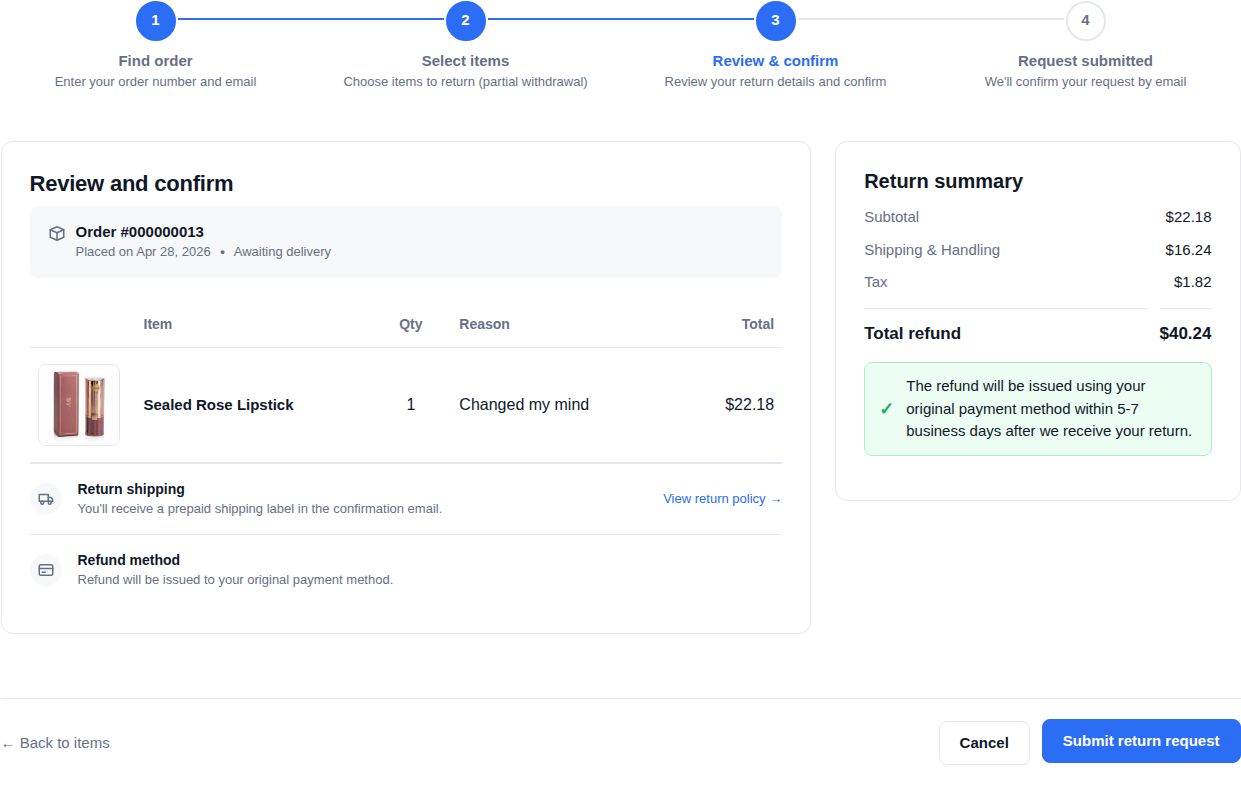
The Review step shows the items, reasons, refund breakdown, and return shipping instructions configured by the merchant. The final button label defaults to Confirm withdrawal — Art. 11a(2) requires unambiguous wording. The two-step structure (Step 2 selection → Step 3 confirmation) is the legal two-step ceremony required by Art. 11a(3); a single-page popup confirmation would not be compliant.
Step 4: Success
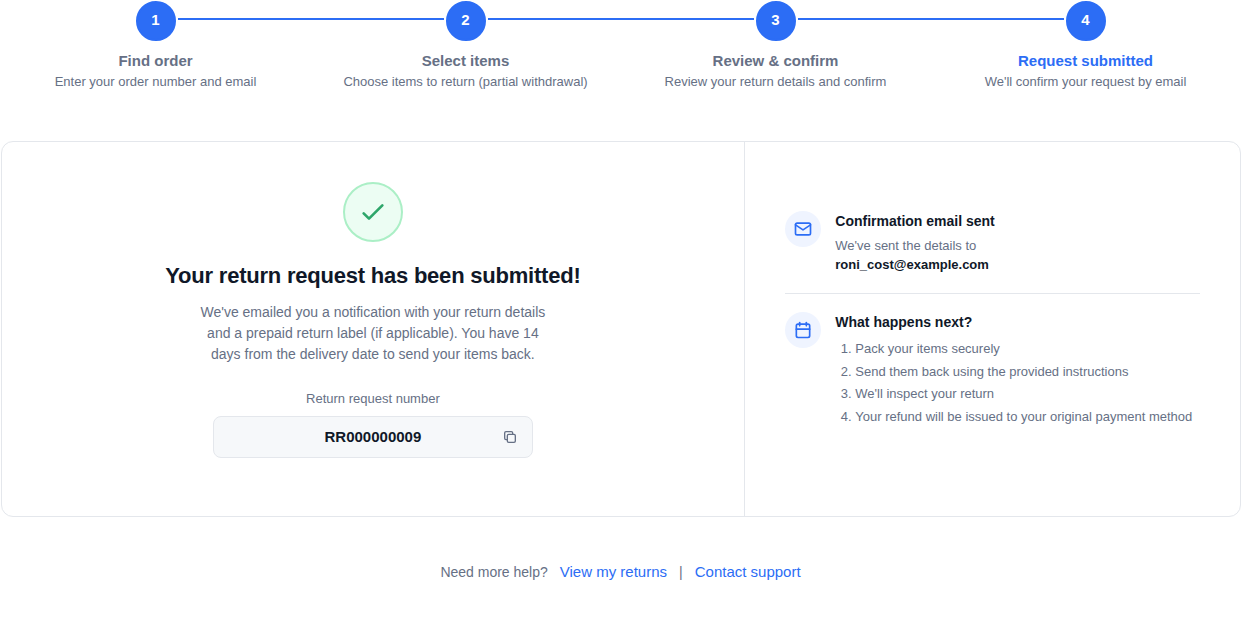
After the customer clicks Confirm withdrawal, the request is persisted, the receipt email is queued, and the success page shows the request number (e.g. RR000000022 with the configurable prefix). The customer can copy the number, view the linked order, or open the receipt PDF if one was attached.
Step 5: Receipt email
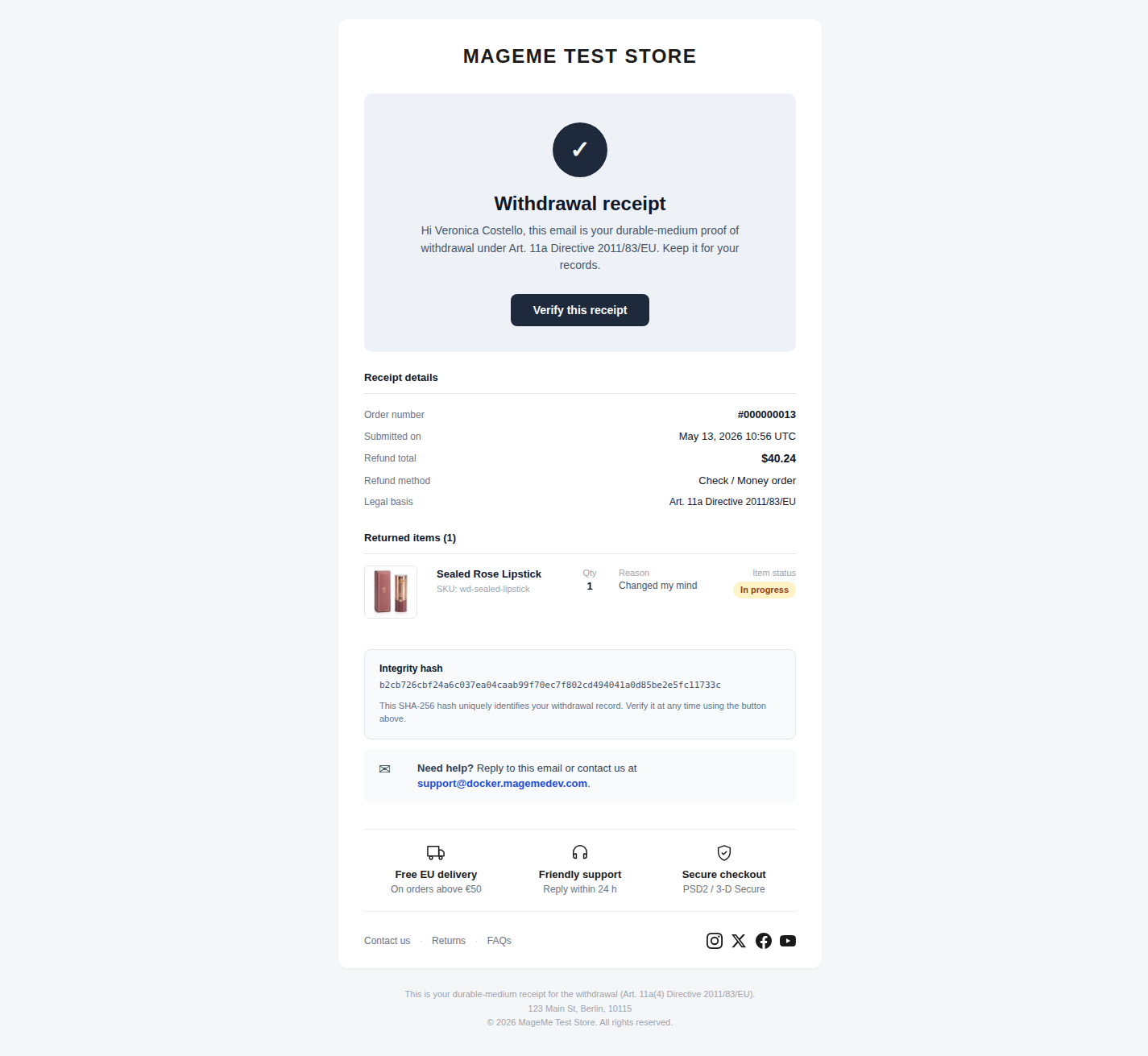
The receipt email is the durable-medium acknowledgement required by Article 11a(4). It is sent immediately after confirmation, retried up to three times if delivery fails (configurable), and contains a content-hash fingerprint that proves the text the customer received has not been altered.
Real receipt email content (excerpt)
Subject: Your withdrawal request RR000000022 — receipt

──────────────────────────────────────────────
Withdrawal receipt
──────────────────────────────────────────────

Request RR000000022
Submitted: 2026-05-12 14:38:02 UTC
Order: #000000004 (placed 2026-04-28)

Items withdrawn:
  1 × Hero Hoodie (M, blue) — 49.00 EUR
  1 × Strive Shoulder Pack — 32.00 EUR

Refund:
  Items (incl. VAT)          87.95 EUR
  Shipping                    5.00 EUR
  Of which VAT                6.95 EUR
  Total refund               92.95 EUR

Reason: Changed my mind

What happens next:
  • You will receive return shipping instructions within 2 business days.
  • Once we receive the items, your refund is processed within 14 days
    via the original payment method (Art. 13).

Right of withdrawal: Article 11a of Directive 2011/83/EU
Content hash (SHA-256): a9b3c7e1...8f2d1e6c

──────────────────────────────────────────────
Acme Store · contact@acmestore.example · acmestore.example
The hash footer is the integrity proof. If the merchant later disputes what was disclosed to the customer, the customer can present the email and the hash can be re-computed from the stored receipt body. Pro tier extends this with a public verification URL (/withdraw-contract/verify/...) that recomputes the hash server-side.
After submission
Request status
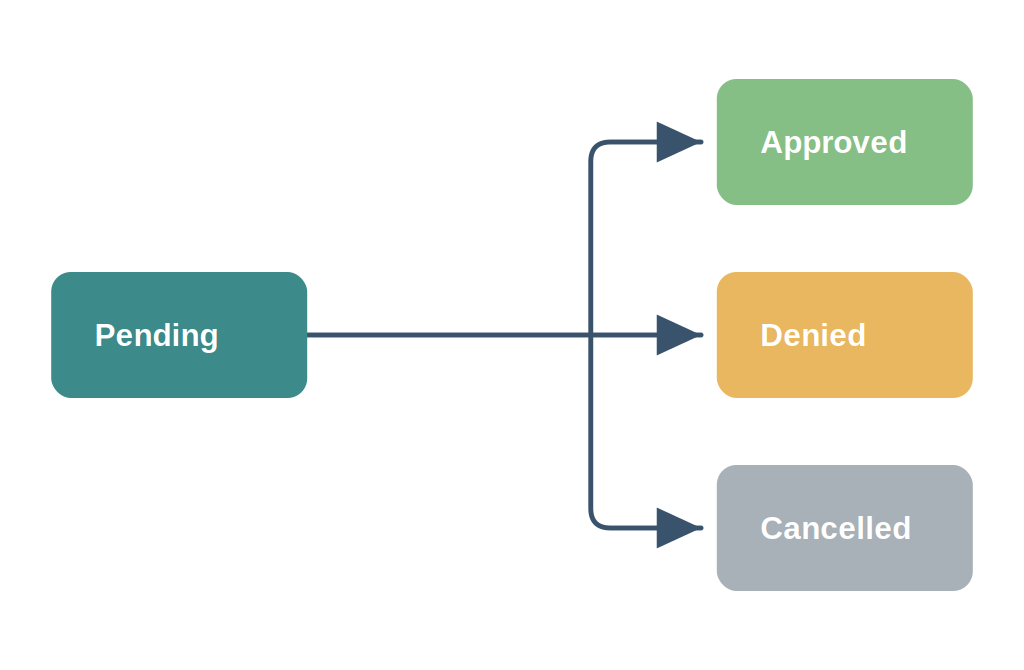
A request moves through a small set of states. Terminal states cannot transition further.
| Status | Meaning | Can transition to |
|---|---|---|
pending | Customer confirmed; awaiting merchant decision (shown in admin as Pending) | approved, denied, cancelled |
approved | Merchant approved the withdrawal | — terminal — |
denied | Merchant denied the withdrawal (reason required, min. 10 characters) | — terminal — |
cancelled | Cancelled by the customer or admin | — terminal — |
anonymised | Reserved terminal status for future PII-anonymisation (not used in this release) | — terminal — |
pending is the only state a request can move out of. The customer is emailed on every transition — approval, denial, and cancellation each send their own notification (see Email Templates).
Customer self-cancel
A customer can cancel their own request while it is pending (not yet decided by the merchant). The cancel button appears in the customer's "Withdrawal requests" section of the order view. After cancel, the customer receives the cancellation email (Email #5 in Email Templates). Once the merchant has approved or denied, the customer can no longer self-cancel — the case is closed.
My Account integration
When Frontend → Placements → Show in My Account is enabled (default), three things appear in the customer's account:
- Sidebar link —
Withdraw from contract, routing to the landing page. - My Orders badges —
Eligible for X daysorNot eligible — reasonnext to each order. - Order view widget — a card on the order detail page with a
Start withdrawalbutton and the deadline.
Admin journey
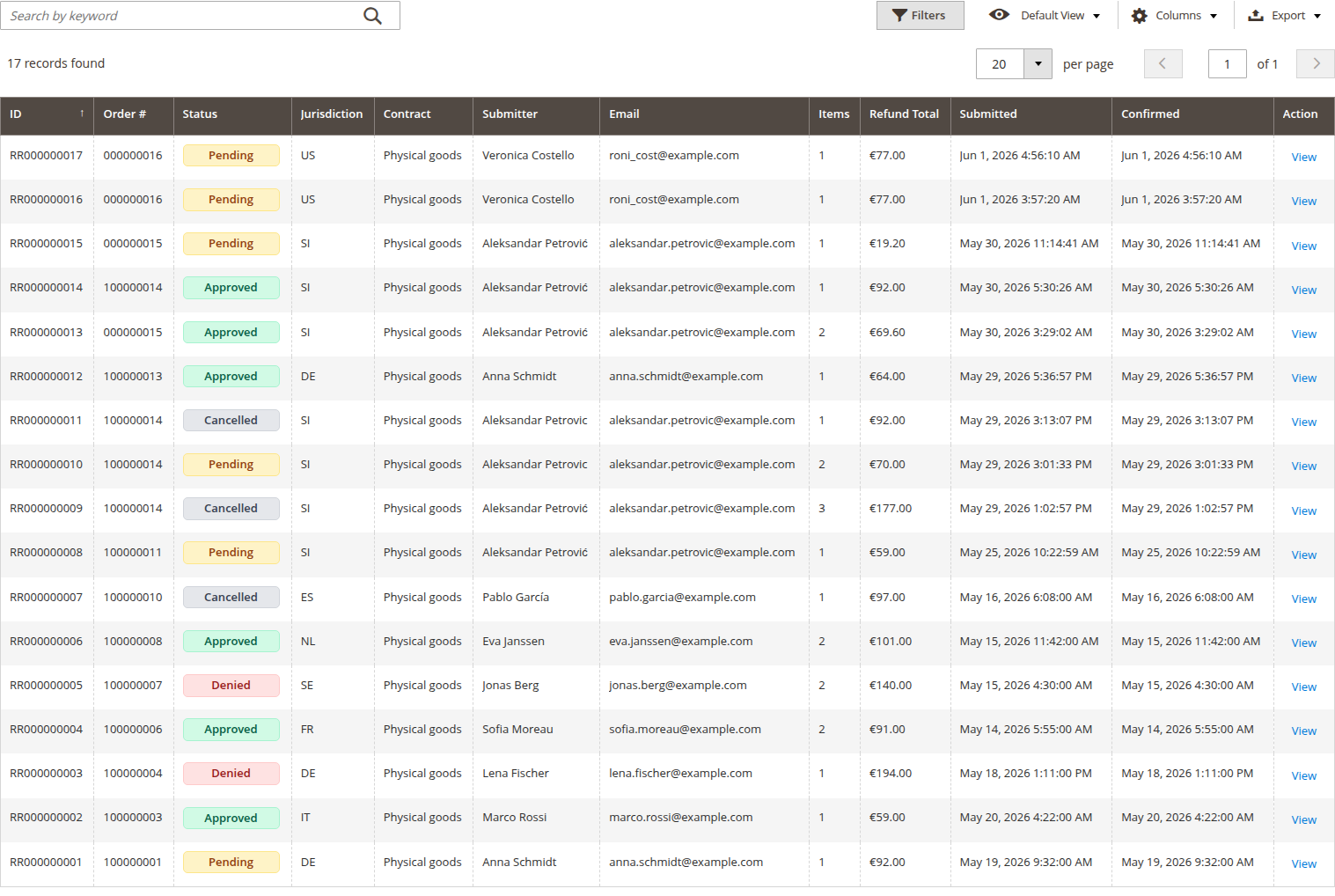
Admin navigation: Sales → Withdrawals → Withdrawal Requests (requires the MageMe_EUWithdrawal::request_view ACL).
The grid is filterable by status, date range, customer email, and order number. Mass actions are limited to safe transitions — you can mass-approve pending requests but you cannot mass-edit terminal states.
Clicking a row opens the Request detail page with three tabs:
- Information — customer details, order items withdrawn, status timeline, refund estimate.
- Audit — append-only log of every state change with timestamp and admin user.
- Pre-Contract Proof — what version of the Annex I withdrawal-right text was displayed to the customer at checkout. Live in the free tier; the Pro
annex-iadd-on extends this with immutable per-request snapshots.
From the detail page the admin can transition status (Approve, Deny, Cancel), add internal notes (audit-logged), and resend the receipt email if it failed delivery.
Continue with the Setup Checklist for what to configure before going live, or Configuration for the full admin reference.