MageMe EU Withdrawal | Returns Workflow
A withdrawal request the customer submits in the storefront is the start of the returns process, not the end. This page covers what the merchant does between the customer's confirmation and the refund landing on the customer's card.
For the customer-side flow, see How It Works. For the admin UI surfaces, see Configuration and the customer-flow page's admin section.
Process overview
Customer confirms        Merchant reviews         Customer ships      Merchant inspects    Refund issued
withdrawal       →       request                  goods back     →    + restock decision  →
on storefront            (admin grid)             (out of band)
The module owns the first three of these — the audit trail, the status state machine, the receipt email. The physical-return logistics, inspection, and refund disbursement are handled by you in your existing ops workflow plus standard Magento credit-memo. The module records what happened; it does not move money or print shipping labels.
Status state machine
| Status | Set by | What it means |
|---|---|---|
pending | Customer (on confirm) | Customer confirmed the withdrawal. Receipt email queued. Awaiting your decision. Shown in the admin grid as Pending. |
approved | Merchant (admin) | Withdrawal accepted. Refund obligation is now active. |
denied | Merchant (admin) | Withdrawal refused. A reason of at least 10 characters is required — it is shown to the customer in the denial email and recorded in the audit log. |
cancelled | Customer or Merchant | Pulled before resolution. Customer-initiated cancel is possible only while pending. |
anonymised | Reserved | Terminal status reserved for future PII-anonymisation tooling. Not used in this release; the free tier has no automated data-wipe job. |
pending is the only non-terminal state; the only transitions are pending → approved, pending → denied, and pending → cancelled. Everything else is terminal — the state machine refuses invalid transitions (e.g. denied → approved is not allowed; create a fresh request if you need to reverse a wrong decision).
Step 1: Review the request
Admin → Sales → Withdrawals → Withdrawal Requests. Open the request from the grid.
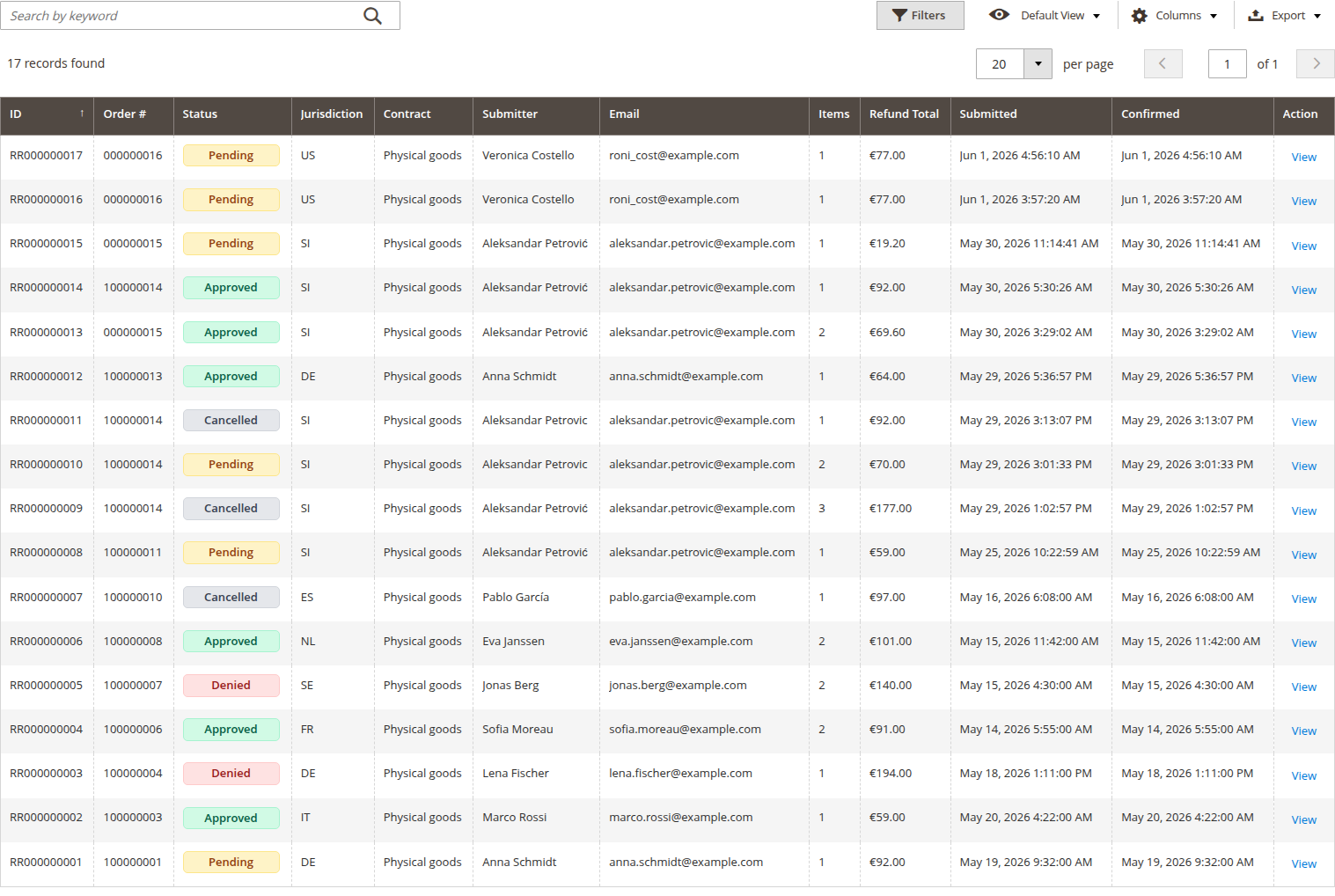
The detail page has three tabs:
- Information — customer details, items withdrawn, refund estimate, customer's stated reason and optional free-text comment. Where the customer withdrew a bundle that goes back as a single item, the parts inside it are listed under the bundle with the quantity to expect, so you know what the parcel should contain before you inspect it. No price is shown beside an individual part, here or anywhere else: a bundle returned whole is refunded as one amount, on the bundle line. When you come to raise the credit memo, Magento's credit-memo screen breaks that amount down across the components for you — provided the bundle is priced from its contents. A bundle sold at one fixed price has no per-component amount to break down, because none was ever charged.
- Audit — append-only timeline of every state change with timestamps.
- Pre-Contract Proof — the Annex I disclosure text that was on the checkout page when the customer placed the original order. (Pro
annex-iadds the full HTML snapshot here.)
Decide:
- Approve — proceed to refund.
- Deny — reject the withdrawal with a reason (e.g. "Outside 14-day period", "Item ineligible under Art. 16(c)"). The reason is shown to the customer in the denial email and recorded in the audit log.
- Cancel — cancel on the customer's behalf if they asked you to outside the system (e.g. phone call). The cancellation email is sent.
Whichever you choose, the module writes a short comment to the related order's status history, so the outcome is visible on the order timeline in Sales → Orders → <order> — the refund amount on approval, the reason on denial, or who cancelled (with your note, if you added one). A matching comment is also written earlier, when the customer first files the request (with the requested refund amount), so the order timeline shows the full story from submission through to resolution. The order's own status is left unchanged.
When to deny
You can lawfully deny a withdrawal only on specific grounds:
| Ground | Article | Example |
|---|---|---|
| Outside the 14-day period | Art. 9(2) | Customer submitted after delivery + 14 days |
| Article 16 exclusion | Art. 16(a)–(n) | Custom-made product, perishable goods, sealed hygiene/AV with broken seal |
| Digital content waiver | Art. 16(m) | Customer expressly consented at checkout, performance has started |
| Goods not returned in time | Art. 14(2) — caveat | Customer requested return but did not ship within 14 days of withdrawal notice |
Denial reasons that are not valid: subjective complaints about the customer's behaviour, "we don't accept returns of sale items", "store policy". The Directive overrides store policy.
Step 2: Send the customer return instructions
Approval triggers Email #2 (Approval) automatically. Customise the template at Marketing → Email Templates to include your specific return-shipping instructions: which carrier, who pays, where to ship, what to include in the parcel.
The module does not generate shipping labels. Common patterns:
- Customer pays return shipping — the Directive lets you require this, but only if you said so clearly before the order was placed. Make sure your terms and conditions and the return-address text shown at checkout both state this.
- Merchant pays — generate a prepaid label in your carrier portal (Sendcloud, ShipStation, DHL, etc.) and attach the PDF to your approval email.
- Drop-off at retail — if you have a physical location, link to your store finder.
The customer ships back through standard postal/courier channels, outside the module.
Step 3: Receive and inspect the goods
When the parcel arrives, inspect the items before issuing the refund. Two compliance-critical checks:
Seal-break inspection (Art. 16(e) and 16(i))
If the request was for an item you have flagged as sealed hygiene/health or sealed audio/video/software, your inspection at this stage decides whether the Article 16 exclusion applies.
- Seal intact — Article 16 does not apply. The withdrawal stands, refund proceeds in full.
- Seal broken — Article 16 applies. The customer loses the right of withdrawal for that item. You can:
- Deny refund for that item only (use Edit on the admin request and toggle the affected item; the refund estimate updates).
- Issue a partial refund if other items in the request remain eligible.
The free tier does not store the seal-status decision structurally — your admin notes capture it. The Pro audit module extends this with explicit seal-check fields on the request.
Condition assessment (Art. 14(2))
Article 14(2) entitles you to reduce the refund if the goods come back in worse condition than would result from handling necessary to establish nature and characteristics — but only if you disclosed this in your pre-contract information.
In practice: if the customer used the product to assess fit and returns it in good resaleable condition, you refund in full. If they wore the dress to a wedding and returned it, you can deduct value.
The deduction itself is your decision, applied in the Magento credit-memo (next step). Document the reasoning in the admin notes on the request.
Step 4: Process the refund
Open the original order in Sales → Orders → <order>. Issue a credit memo for the withdrawn items and the standard delivery cost (per Art. 13(1)).
The Refund button on the withdrawal request opens Magento's credit-memo screen already filled in with the withdrawn items, their quantities, and the shipping amount frozen on the request. If a bundle was returned as a single unit, its components are filled in too when the bundle is priced from its contents; a bundle sold at one fixed price is filled in on its own line, which carries the whole amount. Either way the credit memo totals to the amount the request promised. Review the figures before you submit — the merchant, not the module, issues the refund.
Refund SLA (Art. 13(3)):
| Trigger | Deadline |
|---|---|
| Customer notified withdrawal | 14 days from notification |
| Refund must be by same payment method as the original transaction | Always (unless customer agrees otherwise) |
| Right to withhold until goods received or proof of dispatch | Yes (Art. 13(3)) |
Magento's standard credit memo handles same-payment-method refunds for online-captured gateways (Stripe, PayPal, Adyen, etc.). For offline-paid orders (bank transfer, check), you process the refund out of band and mark the credit memo as offline-refunded.
The module does not track the credit-memo issuance — that lives in Magento's sales_creditmemo table. The audit trail records the approval event with the refund total estimate, and the module adds a matching comment to the order's status history so the outcome shows on the order itself; the actual refund disbursement is in the Magento order timeline.
Staying inside the 14-day deadline
The 14-day reimbursement clock (Art. 13(1)) starts the moment the customer notifies the withdrawal. The module keeps that clock visible so a refund never quietly slips past the deadline in a busy queue:
- Due-state. The Withdrawal Requests grid — and each request's own detail page — shows a live reimbursement state for every open request, worked out on the spot from the withdrawal date, so there is no stored field to fall out of date:
- On track — inside the 14-day window.
- Overdue N — the deadline passed N days ago and no refund has been issued yet. Act now.
- Withheld — you have lawfully paused the clock (see below).
- Refunded — the refund has been issued (a credit memo is linked, or you marked it refunded by hand); nothing more is owed. When a credit memo is linked, the request page shows its number as a link, with the refunded amount, so you can open the memo in one click.
- — — not applicable (the request is denied, cancelled, or has no start date).
- Withhold / Resume (Art. 13(3)). On the request detail page, Withhold Reimbursement marks a request as lawfully held — the Directive lets you hold the refund until the goods are back or the customer proves they've dispatched them. A withheld request drops out of the overdue digest and shows as Withheld in the grid. Resume Reimbursement returns it to normal tracking once the goods arrive.
- Mark as refunded. Sometimes the refund goes out outside the request — an offline or bank-transfer refund, an external payment provider, or a credit memo you raised straight from the order. The request then has no linked credit memo, so it would keep counting as overdue and keep appearing in the digest. On the request detail page, under the Reimbursement state, the Mark as refunded link records that you've refunded: the state flips to Refunded and the request drops out of the overdue digest. It only records the refund — no payment is sent, and once it's marked, the request can no longer start a credit memo, so no one refunds the customer twice. Unmark refunded reverses it if you marked it by mistake. (When a credit memo is linked to the request, it already counts as refunded and this link isn't shown.)
- Overdue digest email. An optional once-a-day email lists every approved request that has gone past its 14-day deadline with no refund issued (withheld requests excluded). On a day with nothing overdue, no email is sent. Turn it on and choose who receives it under Configuration → Admin Notifications.
Step 5: Restock or write off
After the refund, decide what to do with the returned goods. The free tier does not automate this — open the returned item in Catalog → Products and adjust stock manually, or use Magento's standard return / RMA workflow if you have it configured.
The Pro audit module adds a per-item disposition field (restocked, damaged, disposed) to the withdrawal request for record-keeping. The free tier relies on the merchant's inventory ops being correct outside the withdrawal record.
Customer self-cancel
A customer can cancel their own request while it is pending (not yet decided). The Cancel withdrawal button appears in the customer's order view. On cancel:
- Status transitions to
cancelled. - Email #5 (Cancellation by Customer) is sent.
- The audit trail records the event with timestamp and IP.
After you have approved or denied the request, the customer can no longer self-cancel. If they ask after that point, they have to contact support.
Resending the receipt
The receipt email (Email #6) is the legally required durable-medium acknowledgement under Art. 11a(4). If delivery fails after the configured retry attempts, the DLQ alert is dispatched to your alert recipient and a Resend receipt button appears on the request detail page.
Fix the underlying delivery issue (SMTP, recipient bounce, etc.) before clicking Resend. Re-sending into a known-broken pipeline doesn't help.
What you do not do
- Move money. The module does not call payment gateways or move funds. Refunds are issued via standard Magento credit memos.
- Generate shipping labels. Use your existing carrier portal.
- Pre-fill RMA workflows. Magento's built-in RMA module (Adobe Commerce) and third-party RMA modules are independent — the withdrawal record is a separate domain and is not synchronised automatically.
The module's job is the compliance audit trail and customer-facing legal artefacts: who declared withdrawal, when, of what items, with what consent, with what receipt. Everything else is your existing ops.